Destination Preferences Window
Use the Destination Preferences Window to configure how EZDetach pre-fills the Where to save field when you open the Save Attachments Window.
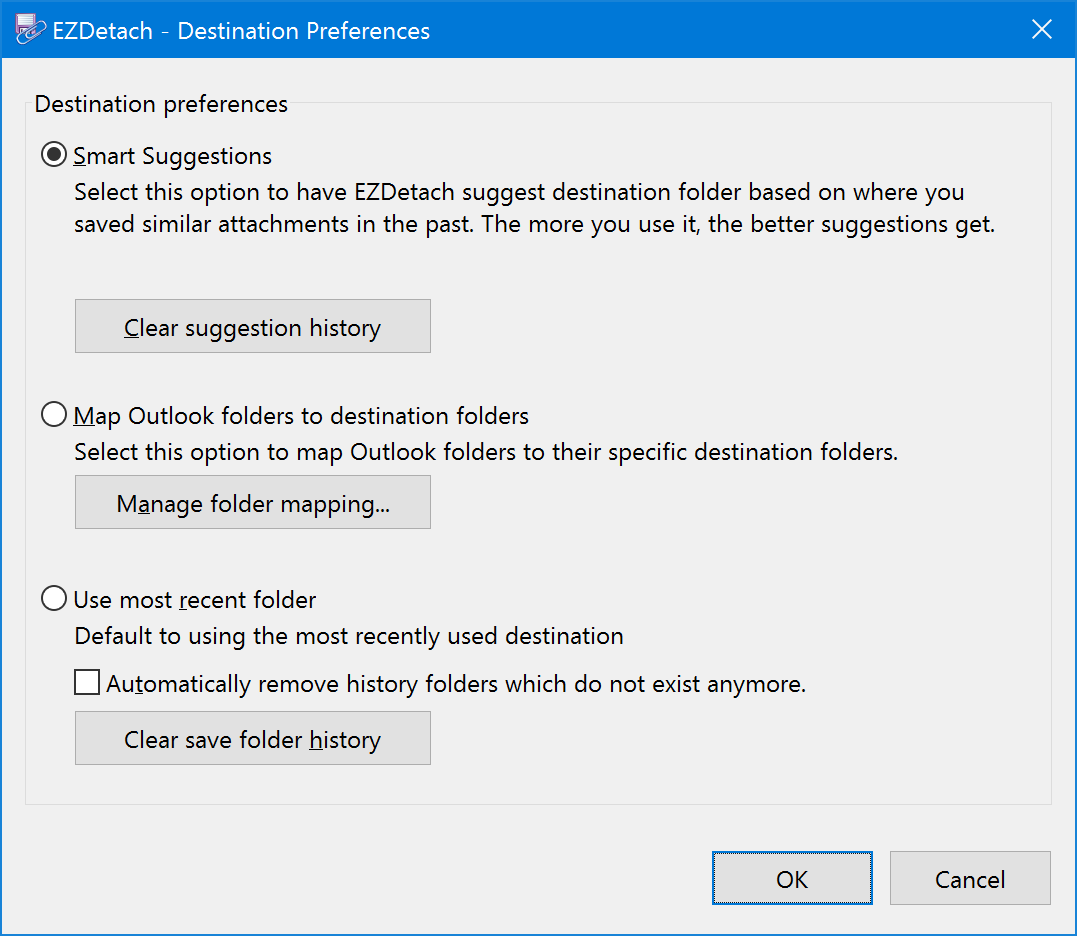
Destination Modes
-
Smart Suggestions¶ EZDetach will suggest destination folder based on where you saved similar attachments in the past. It will learn where you file attachments based on various message attributes, such as sender, recipients, subject, etc.
If you have been using our SimplyFile product, you know how powerful folder suggestions are. With SimplyFile, you simply click a button to file a message in the right Outlook folder, instead of using tedious and error-prone drag and drop.
We have integrated the same folder suggestion algorithm that powers SimplyFile into EZDetach. Instead of suggesting an Outlook destination folder, like in SimplyFile, EZDetach suggests file system destination folders.
-
Map Outlook Folders To Destination Folders¶ Use this option if you always select destination folders based on which Outlook folder the message is located in. Every time you save an attachment from a particular Outlook folder, EZDetach will use the corresponding Destination Folder.
Note
The first time you save a message from a particular Outlook folder, you will see “<Click Browse above to select Destination Folder>” in the destination folder field. After you save one attachment, EZDetach will remember your mapping and use it for the future save operations.
-
Use Most Recent Folder¶ EZDetach will always default the Where to save field to the folder you used most recently. This was the default behavior of EZDetach 5.0 and older versions.
Other Destination Preferences Commands
-
Clear Suggestion History¶ Removes the learning history accumulated by the Smart Suggestions mode.
-
Manage Folder Mapping¶ Opens the Mapped Folders Window where you can map Outlook folders to Destination folders.
-
Automatically Remove History Folders Which Do Not Exist Anymore¶ If you enable this Option, EZDetach will remove folders, which do not exist, from the Where to save drop-down.
-
Clear Save Folder History¶ Remove all folders from the Where to save drop-down.