How To How to save Outlook messages in PDF format

Product: MessageSave for Microsoft Outlook

Many users need an ability to save Outlook email messages in PDF format. This is frequently required for long-term storage, easy access to email, etc. MessageSave makes this process very easy. Simply follow the steps below.

  1. If you already have PDF printer software, skip to step 3.
  2. Download and install PDFCreator. Set PDFCreator to be your default printer.
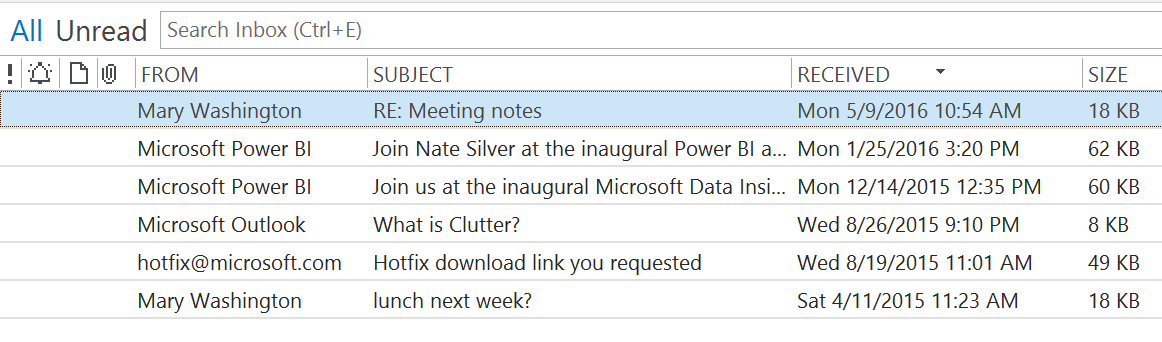
  3. Select the Outlook messages you would like to have converted to PDF.
  4. Click the MessageSave Outlook toolbar button. Check the "Print" option.
  5. Click "Save Now"
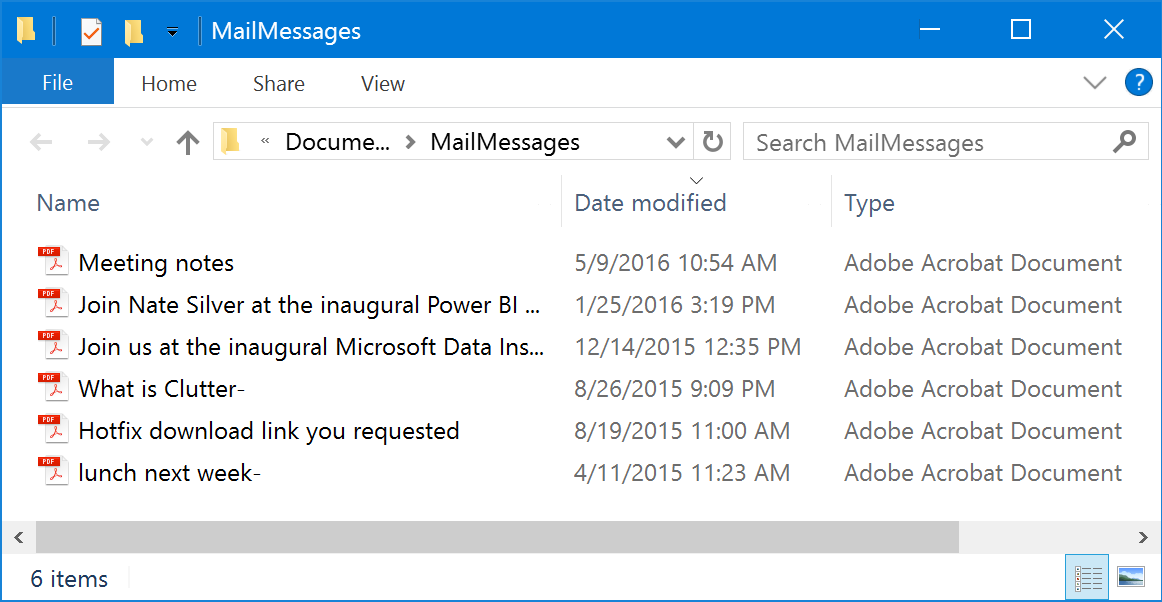
  6. The messages will be converted to PDF according to your PDF printer settings.

You can also follow the above steps to create Rule Wizard rules with MessageSave to automatically convert incoming messages to PDF format. See MessageSave User Guide for more information on creating rules with MessageSave.

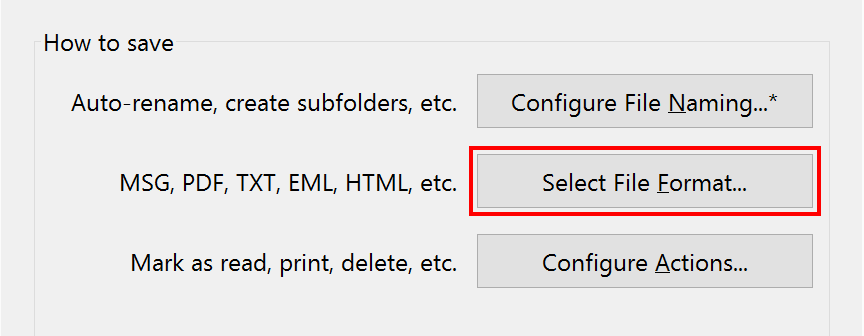
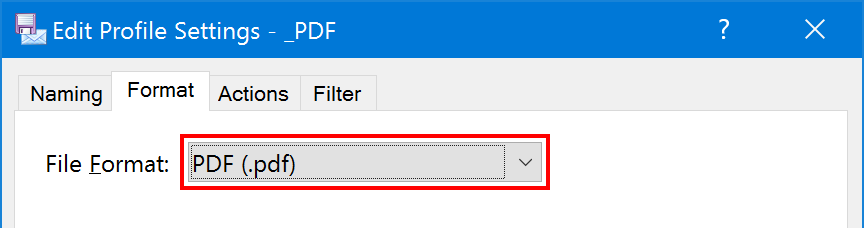
In addition to pdf, MessageSave supports saving messages in txt, msg, eml, html, and mbox formats.

Need to save attachments? Try EZDetach.

Did you find this tip useful? Let us know.

More Outlook Tips and Tricks.

BUY NOW Order MessageSave
RISK-FREE today

Questions? Call us at
1.415.354.9711


FREE TRIAL Download 30 DAY
RISK-FREE TRIAL.

(Download size is only 400KB)