How to export Outlook contacts in vCard (.vcf) format
Step 1 - Export your Outlook Contacts in vCard (.vcf) format (single vcf file):
- Download and install MessageSave.
-
-
Outlook 2010 or newer: Click on the small triangle below the MessageSave Ribbon button and select
"Apple Mac Export -> Export Contacts". -
Outlook 2007 or older: Invoke the following menu command -
"Tools -> MessageSave -> Apple Mac Export -> Export Contacts".
-
Outlook 2010 or newer: Click on the small triangle below the MessageSave Ribbon button and select
-
That's it. MessageSave will export all your Contacts into a vCard file.
Note: Even though only one .vcf file is created, all your contacts are saved in that file.
Note: If you would like a more granular control over the export process, you can use the steps below instead.
Alternative Step 1 - Export your Outlook Contacts in vCard (.vcf) format (individual vcf files):
- Switch to the Contacts folder in Outlook.
-
Click the MessageSave Outlook toolbar button
 .
.
- Select "Save all messages in folder Contacts".
- Click "Select File Format". If you do not see that button, click "More" first, then "Select File Format".
- Select "vCard" in the "File Format" field and click "OK".
- Click "Save Now".
- That's it. You should see vCard (.vcf) file(s) created in the destination directory.
Step 2a - Import vCard (.vcf) files into the Mac Address Book:
- Copy the .vcf files to your Mac. A USB flash drive or an external hard drive is probably the easiest way to do that.
- To import .vcf files into the MAC Address Book, simply select all of them and double-click.
Step 2b - Import vCard (.vcf) files into Entourage:
- Copy the .vcf files to your Mac. A USB flash drive or an external hard drive is probably the easiest way to do that.
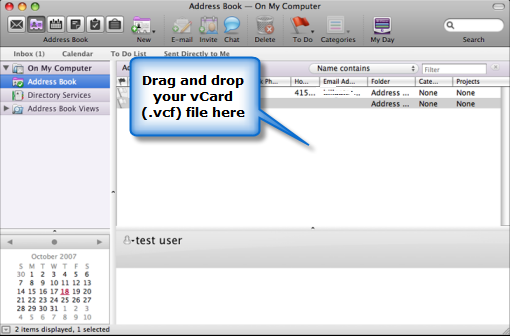
- Open Entourage. Click on "Address Book" button.
- Select all of your vCard files.
- Drag and drop them into the upper-right panel of the Entourage window (See the screenshot below).
Step 2c - Import vCard (.vcf) files into Outlook 2011 for Mac:
- Copy the .vcf files to your Mac. A USB flash drive or an external hard drive is probably the easiest way to do that.
- Open Outlook 2011 for Mac. Click on "Contacts".
- Click inside the center panel in the Outlook window. If you have Outlook configured to display the Reading Pane at the bottom, click inside the upper-right panel of the Outlook window.
- Select all of your vCard files.
- Drag and drop them into Outlook's center panel/upper-right panel described in Step #3
If you have an error importing VCF file into OS X Lion Address Book.
If you import a VCF files using the steps above into OS X Lion Address Book and receive an error message that there were problems importing contacts and only some of the contacts have been imported, please follow the alternative instructions below to import your contacts.
- Export the contacts from Outlook as individual VCF files, as described in the Alternative Step 1 section.
- Transfer the VCF files to a folder on your Mac Desktop.
- Open Address Book on the Mac.
- Switch to Group view. (Menu command: "View->Groups")
- Select the Group into which you'd like to import the contact files.
- Highlight/Select all .vcf files on your Mac desktop folder (Cmd+A)
- Drag and drop the vcf files into the right-side panel in Address Book.
In addition to contacts, MessageSave can also help you export Calendar and transfer your email messages to Apple Mac Mail or Entourage.
We also have instructions on how to migrate Outlook distribution lists to Entourage.
In addition to vCard, MessageSave supports saving messages in msg, eml, html, txt, pdf and mbox formats.
Did you find this tip useful? Let us know.