QuickPick Window
The QuickPick window is optimized to:
- Let you find any Outlook folder by typing just a few keystrokes.
- Perform an action on that folder (such as File, Go To Folder, etc.) with one additional keystroke.
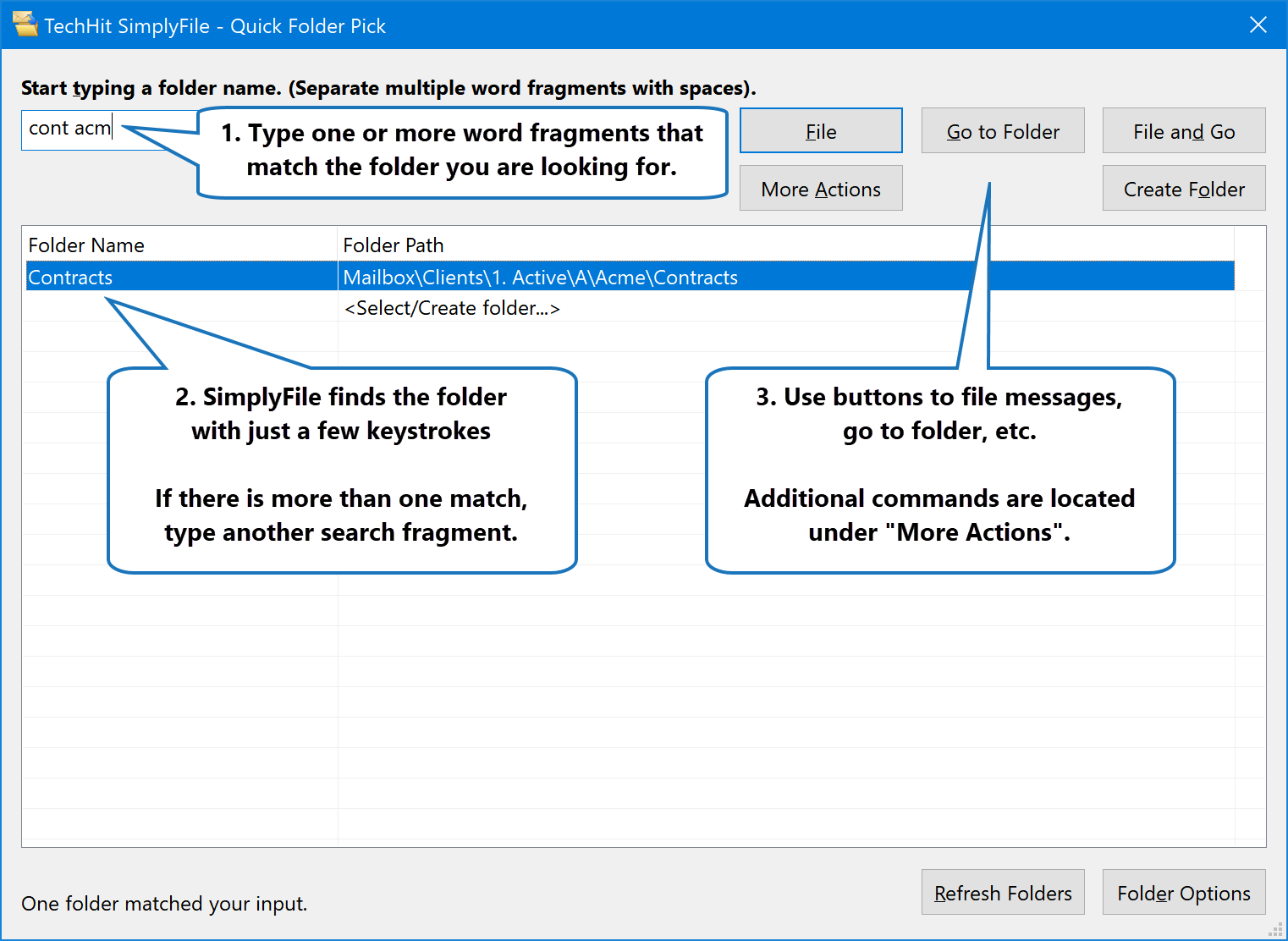
Finding Outlook Folders Using QuickPick
When the QuickPick window opens, it will list all your folders, which can be a very long list. Some customers may have tens of thousands of folders. Trying to scroll through all of them looking for the right folder would be futile. There is a much faster way.
Start typing the words (or word fragments) which you know occur in the folder name or in the name of one of its parent folders. The list will be filtered to show only the folders matching what you have typed. (Sometimes this lookup method is called “type ahead”).
If you still see more than one folder in the list, you can type a space and enter a second word. If you need to narrow it down even further, type another space and another word, etc. The search words will be matched in any order - they do not need to be listed in the same order they appear in the folder path.
In the screenshot above, you see two word fragments in the search field: cont
and acm. The first word cont matched all folders with words such as
Contracts, Contacts, etc. The additional search term acm narrowed that list
down further to display only the folders that matched both. In this example, there
was only one match out of 12620 folders - \Inbox\Clients\Acme\Contracts.
(cont matched Contracts and acm matched Acme).
Tip
Remember, the QuickPick folder list is optimized for quick navigation using the keyboard. In most cases it will be much faster than trying to scroll the list with your mouse.
Hotkeys along with the QuickPick make SimplyFile perfectly optimized for fast keyboard-based operation.
Tip
If you need to scroll the list of folders to select the right one (for example, when you typed a few letters and several folders matched), you can use Ctrl+K and Ctrl+J in addition to Up and Down arrows. This allows you to scroll without moving hands from the Home position. Alternatively, you can always type more space-separated search terms to zoom in on the right folder.
Note
By default, QuickPick does not list Public Folders or folders from Shared Mailboxes. To enable them, click Show Public Folders or Show Additional Exchange Mailboxes under More Actions.
QuickPick Commands
Once you find the folder, you can perform the following commands.
-
File Button (QuickPick)¶ File the message(s) which you have highlighted prior to opening QuickPick in the selected folder.
-
Go To Folder Button (QuickPick)¶ Open the selected folder in Outlook.
-
File And Go Button (QuickPick)¶ File and Go To Folder in one operation.
-
Create Folder (QuickPick)¶ Create a new folder under the folder highlighted in the folder list. In the screenshot above, the new folder would be created as a subfolder of
\Inbox\Clients\Acme\Contracts.Shift+Click this button to open the standard Outlook “Select Folder” window instead of SimplyFile’s “Create Folder”.
-
More Actions (QuickPick)¶ Click More Actions to see a drop-down menu with additional commands:
-
File All Messages In This Thread (QuickPick)¶ File all messages with the same subject as the message you have highlighted before opening QuickPick.
-
File All But Last Messages In This Thread (QuickPick)¶ File all messages in this thread except for the last one. Leave the last one as-is.
-
File The Last Message In This Thread Delete The Rest (QuickPick)¶ File the latest message in this thread. Delete the rest into Deleted Items.
-
File All Messages From This Sender (QuickPick)¶ File all messages from the current folder which were sent by the same person as the message you have highlighted before opening QuickPick.
-
File All But Last Messages From This Sender (QuickPick)¶ File all messages from this sender, except for the last one. Leave the last one as-is.
-
File The Last Message From This Sender Delete The Rest (QuickPick)¶ File the latest message from this sender. Delete the rest into Deleted Items.
-
File And Print (QuickPick)¶ File the message and print it on the default printer in one operation.
-
Show Public Folders (QuickPick)¶ Display Exchange Public Folders in the QuickPick folder list.
-
Show Additional Exchange Mailboxes (QuickPick)¶ Display folders from Shared mailboxes in the QuickPick folder list.
-
-
Refresh Folders (QuickPick)¶ If you recently created a new Outlook folder and do not see it in the folder list, click Refresh Folders to refresh the list.
-
Folder Options (QuickPick)¶ Open the Folder Options Window for the currently selected folder.
QuickPick keyboard hotkeys
Every button in the QuickPick window has a keyboard shortcut, so you can activate it without touching the mouse. To trigger a button using the keyboard, press the Alt key, then press the letter underlined on the button label. For example, for “File Message”, you would press Alt+f.
In addition to that, QuickPick supports:
- Ctrl+j and Ctrl+k for scrolling folder list down and up.
- Ctrl+Plus and Ctrl+Minus for making the folder list font larger and smaller.