SimplyFile Commands
SimplyFile user interface is represented as button on the Home tab of Outlook’s Ribbon Tab. You can also use keyboard hotkeys to perform most of the commands.
SimplyFile UI on the Outlook Ribbon
SimplyFile User Interface is displayed on the Home tab of the Ribbon.

Note
In order to save space, not all SimplyFile functions and buttons are visible by default. Use the UI tab of the Options window to configure which buttons are shown.
See also
For even quicker access to the SimplyFile functionality, you can configure hotkeys for its most frequently used commands. Hotkeys will allow you to work even faster without taking your hands off the keyboard. See Hotkeys tab of the Options window.
SimplyFile Commands
-
One-Click-File Button¶ The left-most buttons display the most relevant folders for the currently selected message. Click one of these buttons to file the selected message(s) to this folder.
Due to SimplyFile’s advanced folder prediction algorithm, the vast majority of your messages will be filed with one click.
You have an option to display either three smaller buttons (recommended):
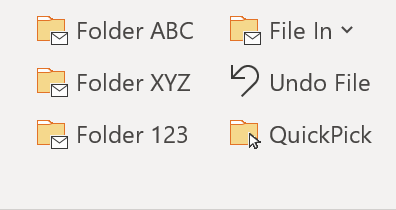
or one large button:
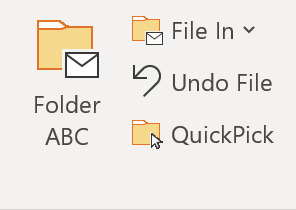
Note
The button label displays folder’s short name. The full folder path is shown in the tooltip, when you mouse over the button.
Tip
If you press the Shift key while clicking the File Message button, SimplyFile will automatically switch Outlook to the destination folder after filing a message. (File and Go).
If you press the Ctrl key while clicking the File Message button, SimplyFile will copy the message to the destination folder rather than move it.
Both of these shortcuts apply to all buttons that file messages.
-
File-In Drop Down¶ The File In drop-down will display the next several suggested folders in the order of relevancy. If the One-Click-File button is not showing the right folder (very rare case), you can click one of the folders listed here to file the message(s).
-
Undo File Button¶ SimplyFile makes filing messages super-fast. In some cases, you might be going through your Inbox clicking File Message so fast, that you do not notice where you filed a particular message. No worries! There are two ways to use the Undo File button:
- Mouse over the button and the tooltip will display you the name of the folder where the last message was filed.
- Click the button, to “un-file” - move the message back. You can click multiple times to “un-file” several messages in a row.
Note
If you filed several messages in one operation (by selecting multiple messages or by using File Thread, File Sender, BatchFile, etc.), one click on Undo File will “un-file” them all.
Tip
You can also find recently filed messages in the Filing History Window.
-
QuickPick Button¶ Opens the Quick Pick Window. QuickPick is one of the most powerful SimplyFile features. Take a few minutes to get to know it. BatchFile Window is another powerful feature you will want to learn about.
-
Go-To-Folder Button¶ Allows you to quickly navigate to an Outlook folder by typing a few characters of the folder name, using the Quick Pick Window.
Starting with version 4, the “Go To Folder” commands lists recently used folders at the top. If the QuickPick window is opened using any other command, the top folders will be based on suggestions for the currently selected message.
Tip
If you do not see the Go To Folder button on the Ribbon, enable it on the UI Tab of the Options window.
-
File Thread Button¶ This button will file all messages from the current folder which have the same subject as one of the messages you have highlighted. Great timesaver!
-
File Sender Button¶ This button will file all messages from the current folder which were sent by the same senders as the messages you have highlighted. Great timesaver!
-
BatchFile Button¶ Opens the BatchFile Window. This command can file multiple messages into their corresponding folders. After you have trained SimplyFile, try this function. It is quite addictive.
-
TaskIt Button¶ Use this button to create an Outlook Task from the currently selected message. The task will be populated with the message subject and body. You can use this option on the Actions Tab of the Options window to control whether the original message is attached to the task.
Configure a reminder on the new task, so Outlook notifies you when it is time to work on it. After that you can file the original message out of the Inbox to keep the Inbox small.
Using Tasks with reminders is a great way to manage future ToDos and follow-ups without cluttering your Inbox.
-
ScheduleIt Button¶ Does a message require a follow up meeting? Use this button to create an Outlook Appointment or Meeting from the currently selected message. The Calendar Item will be populated with the message subject and body. You can use this option on the Actions Tab of the Options window to control whether the original message is attached.
SimplyFile even has an option to automatically invite message recipients to the newly scheduled meeting.
After you create the Appointment or Meeting you can file the original message out of the Inbox to keep the Inbox small.
-
SnoozeIt Drop Down¶ Provides access to the Snooze functionality. See Snoozing Outlook email messages for details on using snooze to manage Outlook To-Dos and followups.
Snooze is an alternative to TaskIt for managing future To-Dos and follow-ups without cluttering your Inbox.
Note
SimplyFile stores all snoozed messages in the
Inbox\SimplyFile\Snoozefolder. So if you need to get to a message before its snooze period is over, you can always find it there.-
Snooze For Predefined Duration¶ SnoozeIt has a number of predefined durations, such as
30 minutes,1 hour,2 hours, etc. Use it to snooze a message for this amount of time. Or you can use the Custom Duration Button below.
-
Custom Duration Button¶ Use this button to specify the exact due time or snooze duration, using the Custom Snooze Duration Window.
-
Pause Unsnoozing¶ If you are busy and do not want to be interrupted by unsnoozed messages, you can temporarily pause unsnoozing.
-
Resume Unsnoozing¶ Resume unsnoozing when you are ready for new tasks.
-
Unsnooze Next¶ If you are done with all items in the Inbox, you can unsnooze the next message even if its time has not come yet.
-
-
Html2Text Button¶ Converts HTML messages to plain text. Why would you want to do that? To protect your privacy and to save space in the mailbox.
You have all seen messages like this - there are just a few lines of relevant text, but the message size is tens of kilobytes. The large size is due to images embedded in the message body or the signature. You want to keep this message, but 50 KB is such a waste for something like that. All those messages add up and take up valuable space in your mailbox.
Html2Text to the rescue! With one click you can reduce that message to the 2-5KB size it deserves, by eliminating the unneeded images and HTML markup.
Tip
By default SimplyFile saves a copy of the original message in the Deleted Items folder, so you can always recover it if you need it. You can control this behavior using Make Backup Of Converted Messages In Deleted Items.
-
Cleanup Button¶ Here you will find commands which help you quickly cleanup your mailbox and keep it nice and tidy.
- Delete Thread - all messages - Delete all messages from the current folder which have the same subject as the message you have highlighted.
- Delete Thread - all but last - Same as above, but leave the last message as-is.
- Delete Sender - all messages - Delete all messages from the current folder which were sent by the same sender as the message you have highlighted.
- Delete Sender - all but last - Same as above, but leave the last message as-is.
-
Find Button¶ Allows you to quickly perform an Outlook search for messages related to the selected message. You can search for messages with the same tags, sender, recipient or subject. It is a great way to quickly lookup messages related to the one you are working with.
-
Inbox Count (Smiley)¶ The counter next to the smiley indicates the number of messages accumulated in your Inbox since you have opened Outlook. The counter keeps changing as you file and receive messages. When you file a message, the count goes up, when you receive a message, the count goes down. A positive number indicates that you have fewer messages in your Inbox, which is good - hence the smiley. A negative number means you have more messages in the Inbox - hence the frown. Mouse-over the button to see additional details. The intent is to provide you with a visual indication of how you are managing your email flow throughout the day. Many customers told us that this helps motivate them to manage the Inbox better.
-
SimplyFile Drop Down Menu (More)¶ The SimplyFile Drop Down Menu is the last command in the SimplyFile Ribbon section. It is labeled
More.Click on that menu to see additional SimplyFile commands. All commands listed below are located there.
-
Actions Menu¶ Use this menu to access the commands which you might have hidden to save space.
-
Train SimplyFile Button¶ Opens the Train SimplyFile Window, which you can use to quickly bring SimplyFile up to speed on your Outlook folder hierarchy.
-
Options Button¶ Opens the Options Window.
-
Folder Options Button¶ Opens the Folder Options Window.
-
Show Filing History¶ Opens the Filing History Window.
-
Display Stats Button¶ Opens the Statistics Window.
-
Bulk Create Folders Button¶ Opens the Bulk Folders Window.
-
Tell A Friend Button¶ We hope that you love using SimplyFile. So much so that you would like to share its benefits with a friend. Use this command to compose a note about SimplyFile to your friend.
Rest assured - the email will not be sent without your approval!
-
Give Us Your Feedback Button¶ We would love to hear what you think about SimplyFile. Send us a note, we are looking forward to hearing from you!
-
Help¶ Displays SimplyFile User Guide.
-
Check For Updates Button¶ Check to see if a newer version of SimplyFile is available.
-
About TechHit SimplyFile Button¶ Opens the SimplyFile About Window, where you can see SimplyFile version and your license information.
-
Enter License Key Button¶ After you have purchased a license, use this command to enter your license key into the product.
-
Buy Now Button¶ Use this command to purchase a license key after you have taken the evaluation version for a spin and liked what you saw.