Quick Start Guide
TwInbox is no longer supported.
Restart Outlook to see the TwInbox toolbar
Thank you for installing TwInbox. After you restart Outlook, you should see TwInbox buttons on the right-hand side of the Outlook Ribbon.

Configure TwInbox and have fun with it
To get the best out of your TwInbox experience, please take a few moments to configure it. Click Options on the TwInbox drop-down and step through a quick setup wizard.
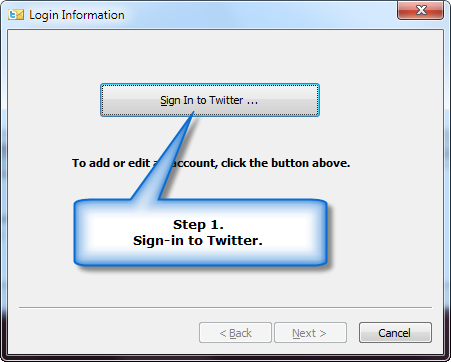
Step 1 - Enter your Twitter user name and password.
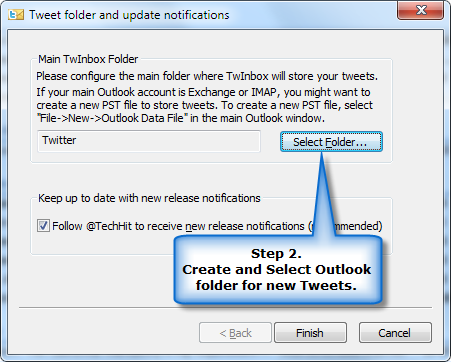
Step 2 - Create and select a new Outlook folder for new Twitter messages, so that they do not clutter your Inbox.
Step 3 (Recommended) - Look through Twitter Options and Account Settings windows to familiarize yourself with the powerful set of features hidden behind the simple user interface.
Step 4 (Optional) - Explore some of the other options, such as playing a sound for new tweets, sorting tweets into subfolders based on the sender, fetching only @replies and direct messages, etc.
Step 5 (Optional) - Do not forget to check out the "Search/Track Keywords" feature. It is very powerful.
Step 6 (Optional) - Look through the FAQ to learn about some of TwInbox's "hidden" features.
Step 7 (Optional) - Follow @TechHit to receive new release notifications.
Step 8 (Mandatory) - Have fun!